
Ubuntu Server is a Linux operating system maintained by Canonical. These retained examples cover Ubuntu 22.04-era installation, LVM expansion and additional storage. Device names and addresses are examples and must be checked against your own system.
Historical guide. The instructions and screenshots describe an earlier setup. Formatting and partitioning erase data; verify the selected disk and a recoverable backup before proceeding. Read the current official documentation.
Install Ubuntu
This walkthrough uses Ubuntu Server 22.04.2. Choose a currently supported release from the official download page; its installer screens may differ. https://ubuntu.com/download/server.
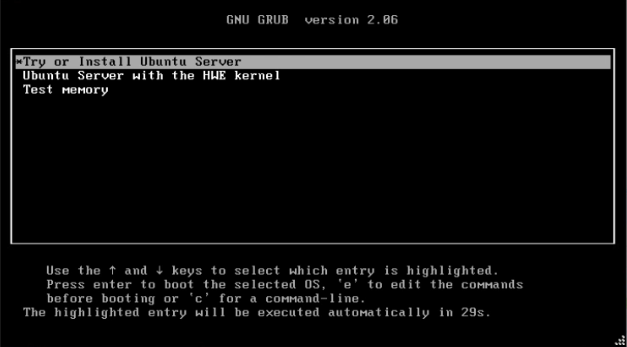
Insert your ISO be it on a Flash Drive or CD and start your system and then press Enter to *Try or Install Ubuntu Server.
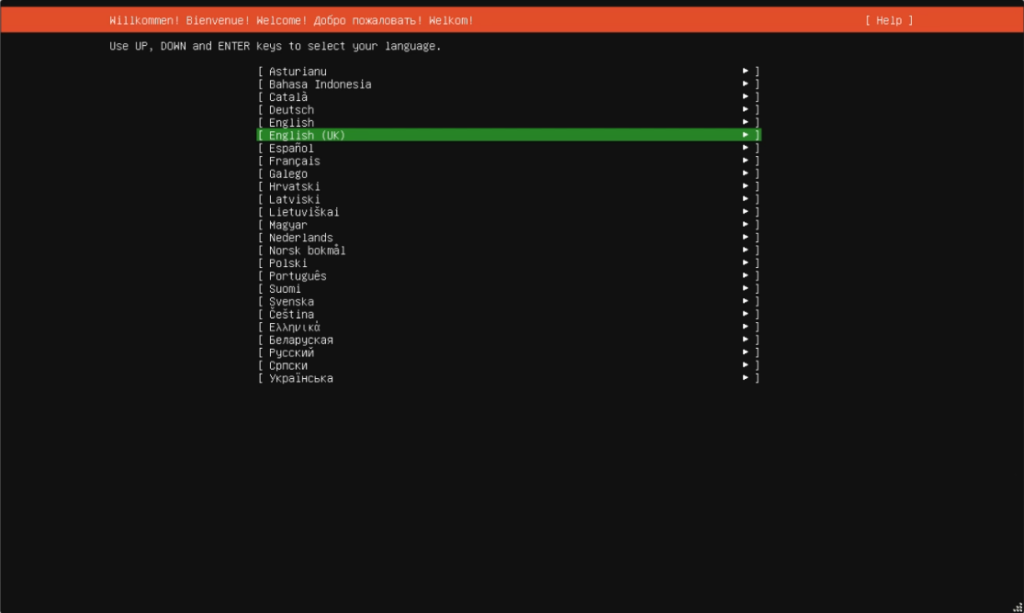
Select the language you desire and press Enter.
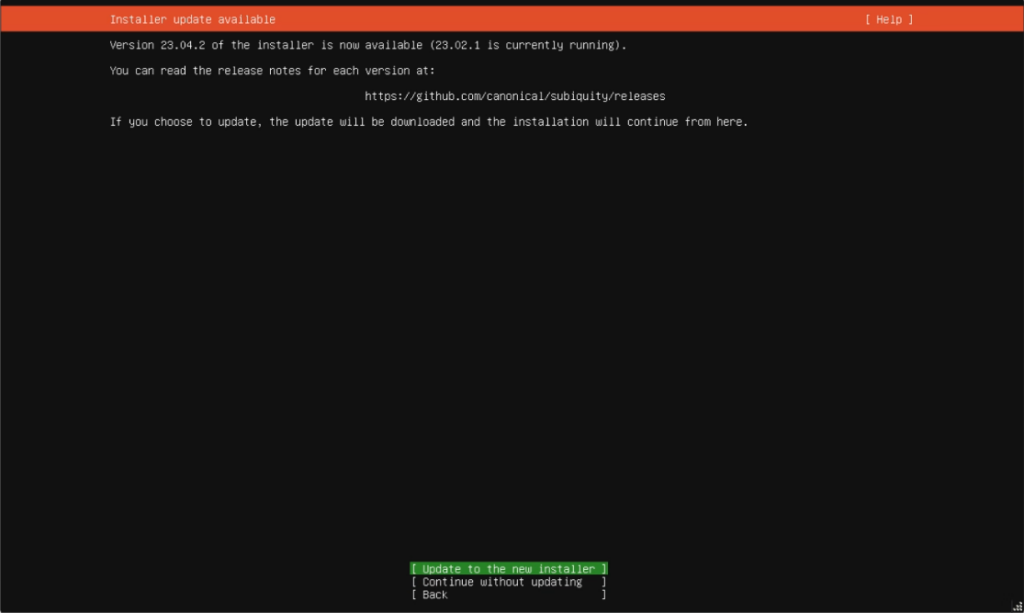
There is an updated version of the installer online and I recommend you update to the new installer.
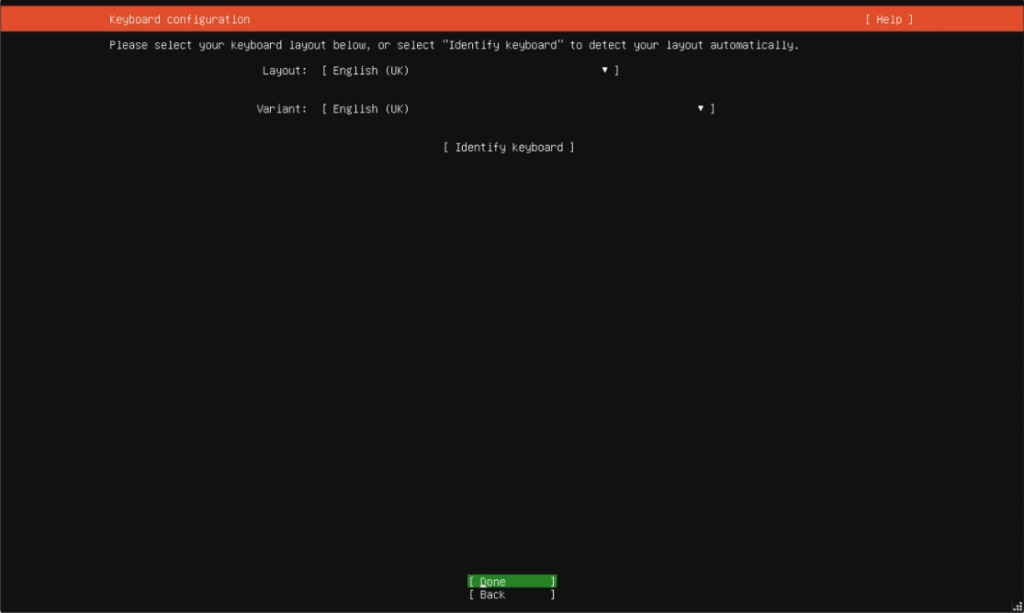
Once the Installer is updated it will ask which keyboard layout you require. Once selected arrow to Done and press Enter.
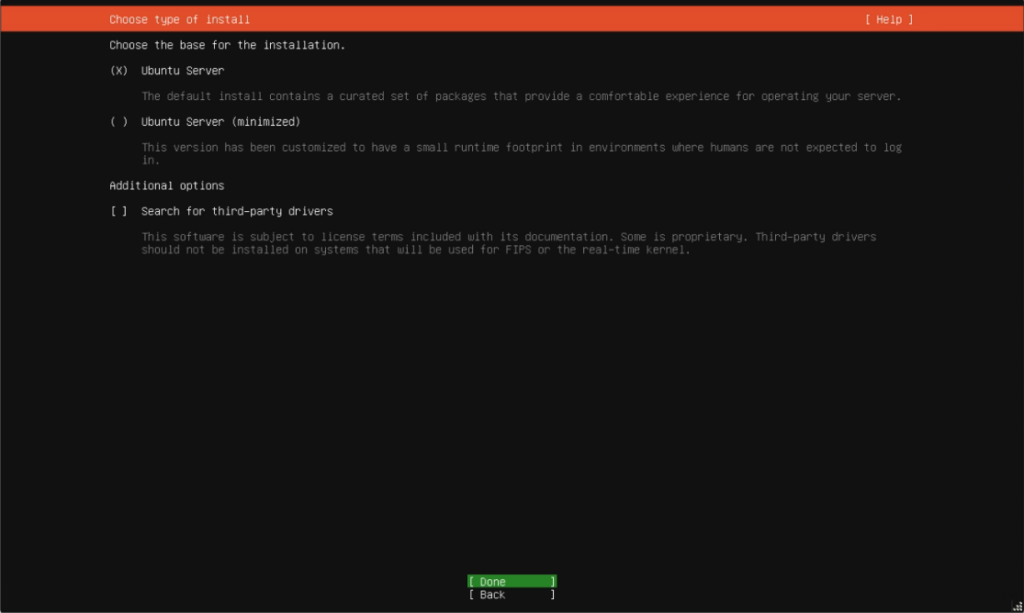
We just want the standard setup so make sure Ubuntu Server is selected and arrow to Done and press Enter.
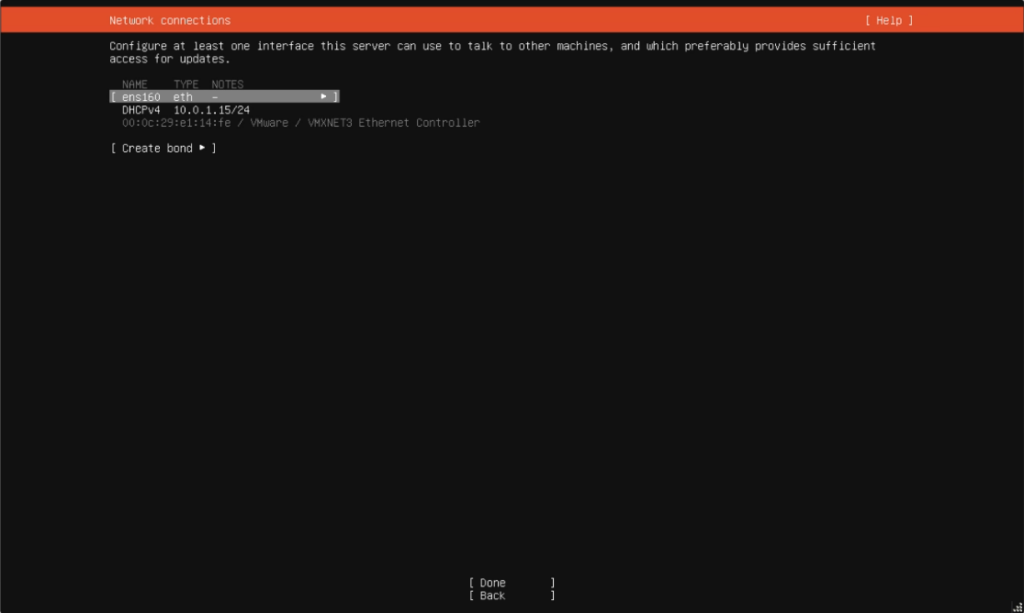
Arrow up to your adapter as highlighted above (ens160) and press Enter.
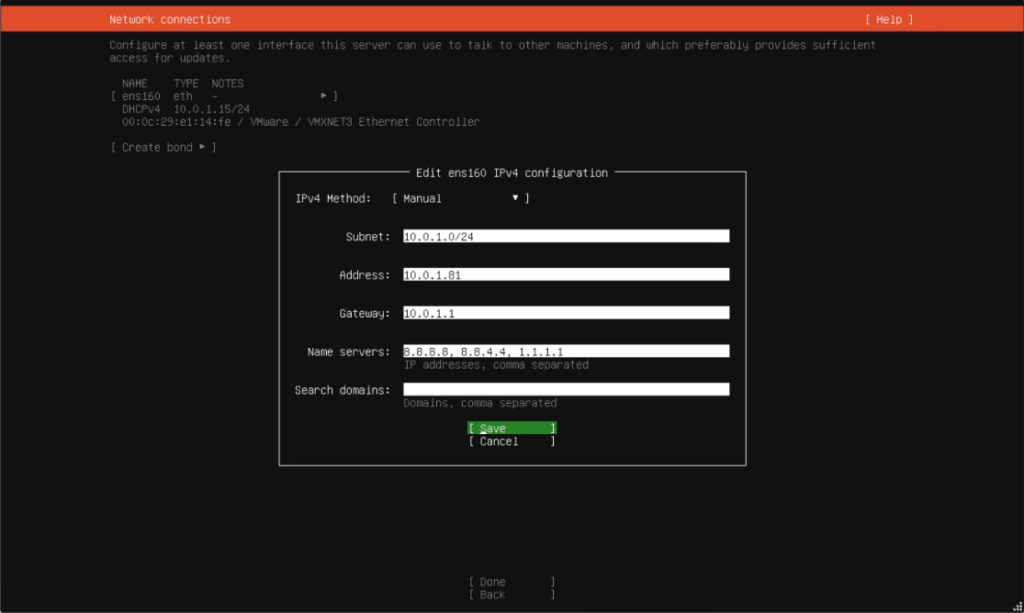
Fill out your required settings. If you are on a normal home router your settings are probably,
Subnet: 192.168.1.0/24
Address: 192.168.1.## Replace ## with a free location on your router. I used 81
Gateway: 192.168.1.1
When finished arrow to Save and press Enter. Network will reconfigure, then arrow down to Done and press Enter.
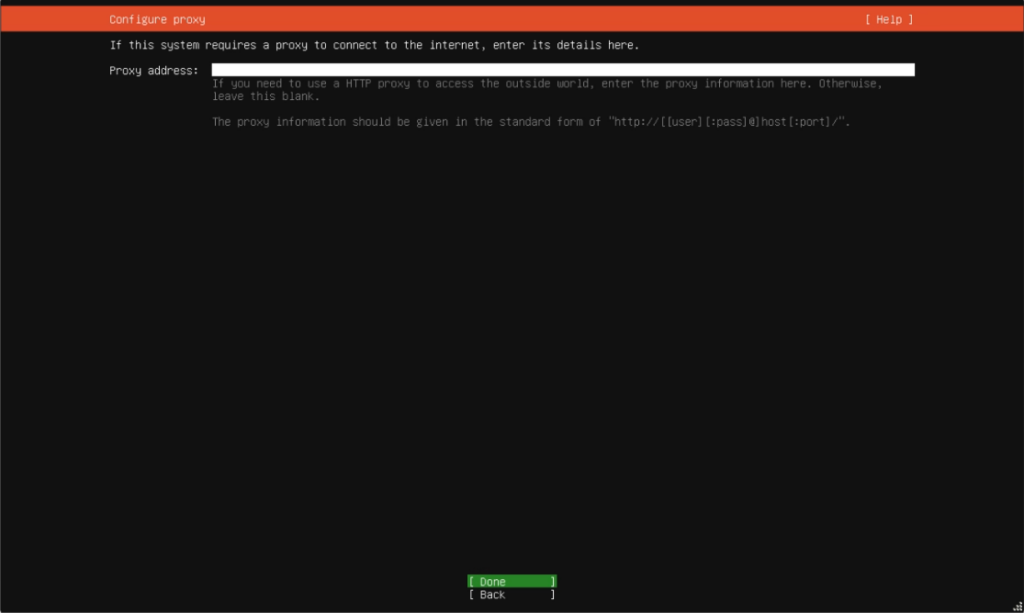
If you are behind a proxy enter it here. We are not so press Enter on Done.
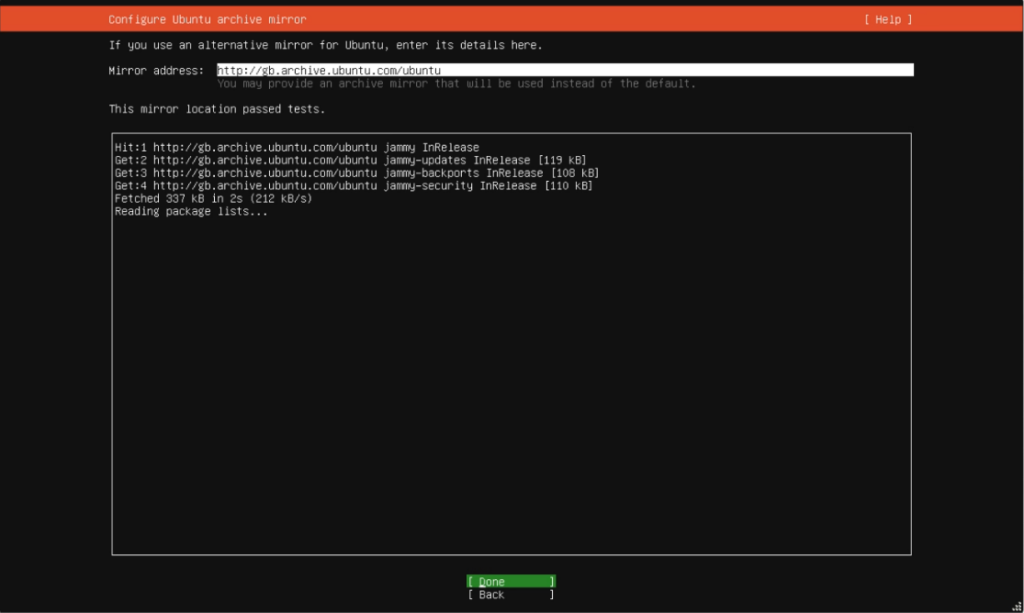
When it says “This mirror location passed tests.” you can press Enter on Done.
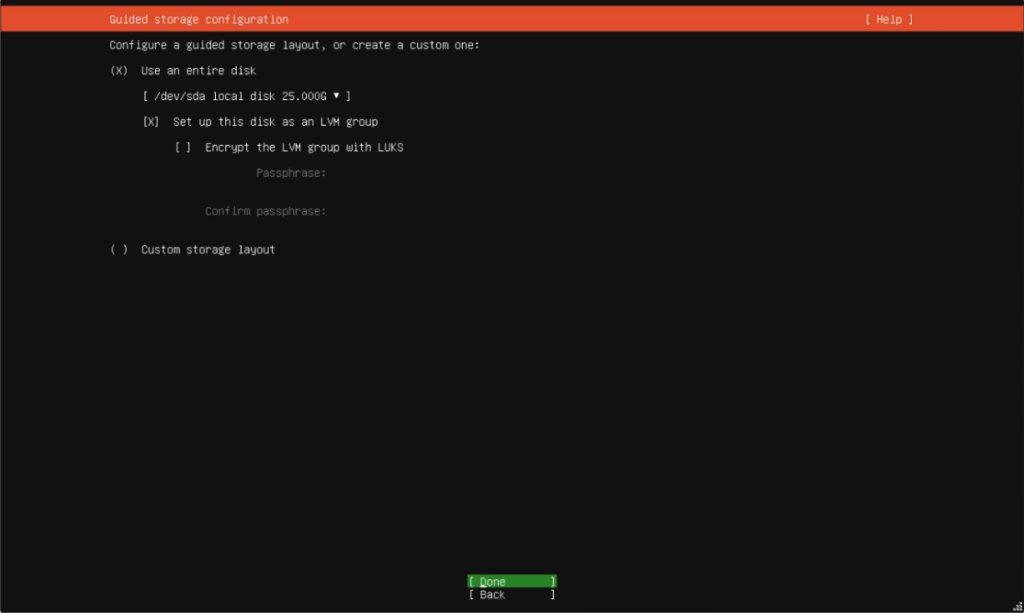
Here you can create partitions etc. We just want to use all of the disk as an LVM without Encryption.
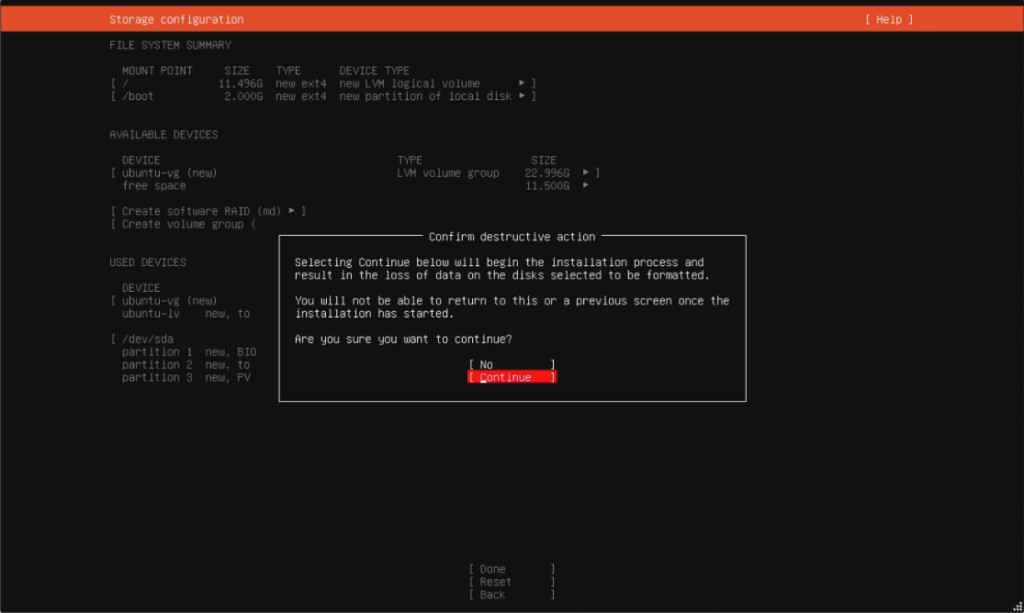
You will need to confirm to continue.
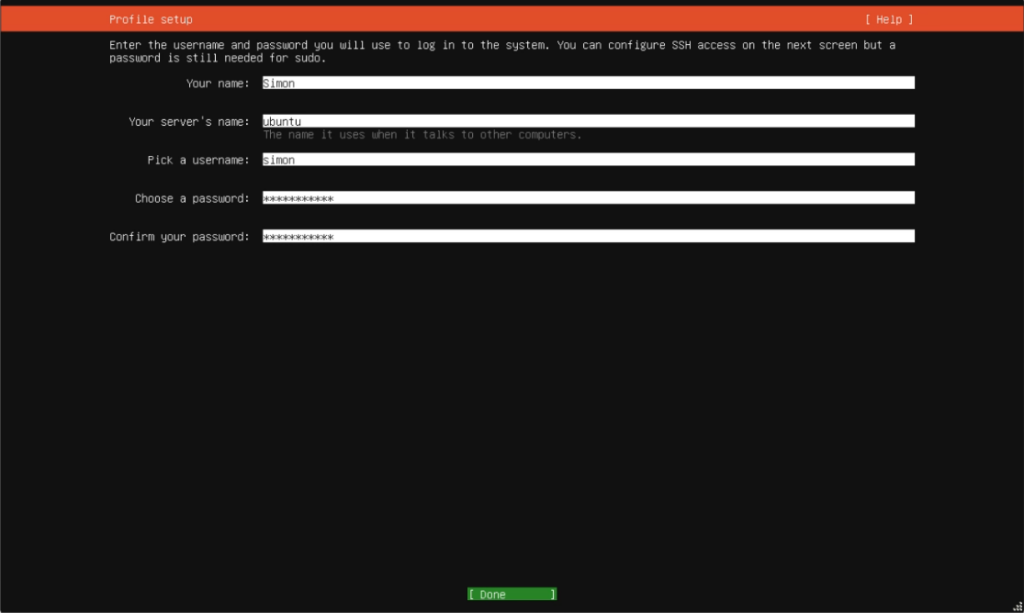
Setup username and password and give the server a name.
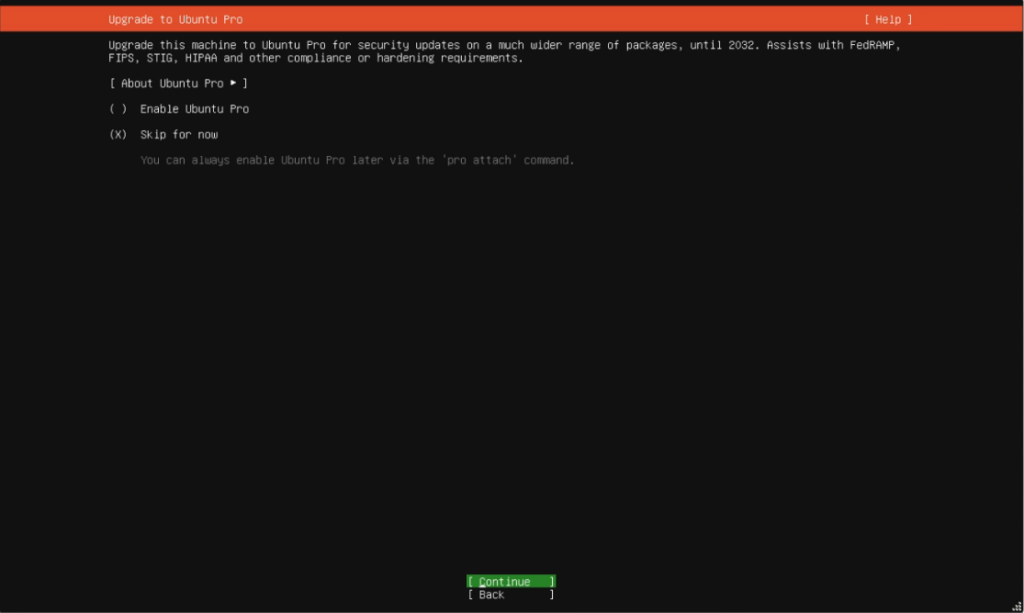
Skip Ubuntu Pro this can be setup later as you will need to register an account with https://ubuntu.com/pro/dashboard
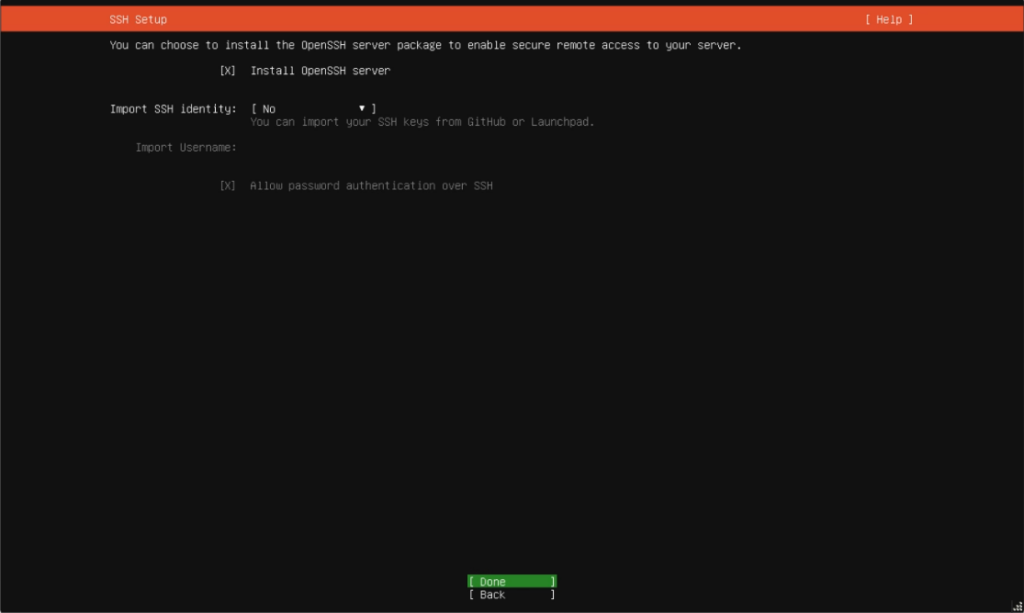
If you intend connecting to your server from another computer with say Putty you will need to install the OpenSSH server, arrow up to it and press Space-Bar to put an x next to it then back to Done and press Enter.
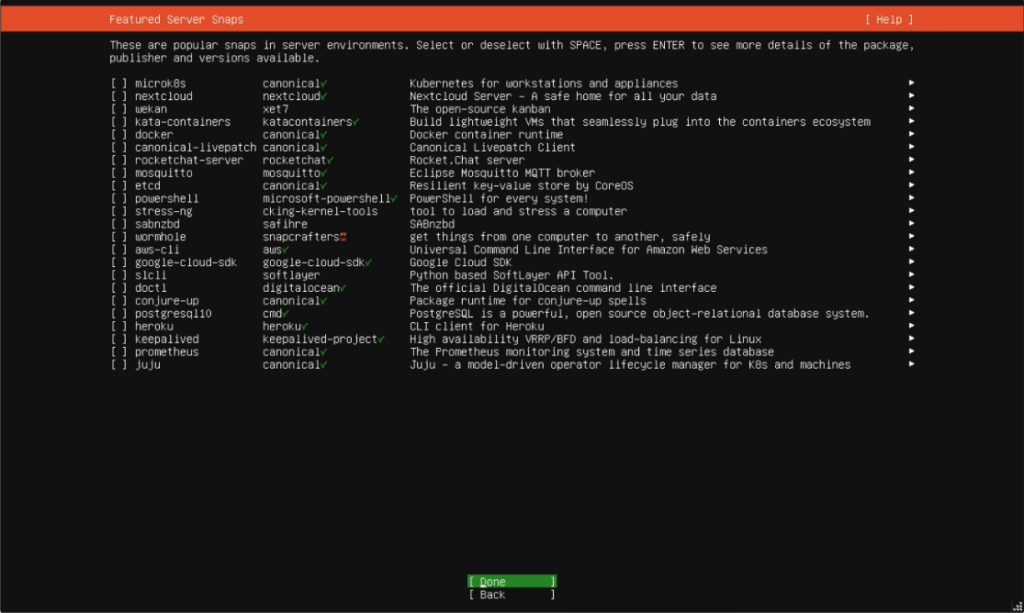
Don’t pre install any packages here as it is better to do it manually especially Nextcloud as it puts it in a SNAP container which has problems with SAMBA share. Arrow down to Done and press Enter.
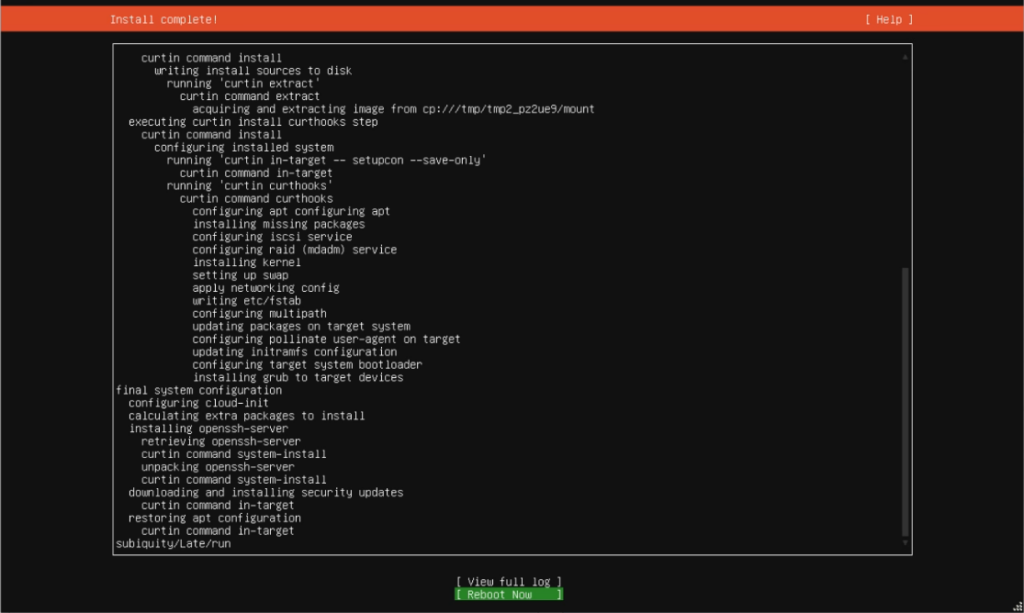
Once the installation finishes it will automatically start to download and install security updates, at this point the server can be rebooted and used but I recommend you leave it to install then reboot.
Remember to remove the installation media i.e. CD or Flash Drive.
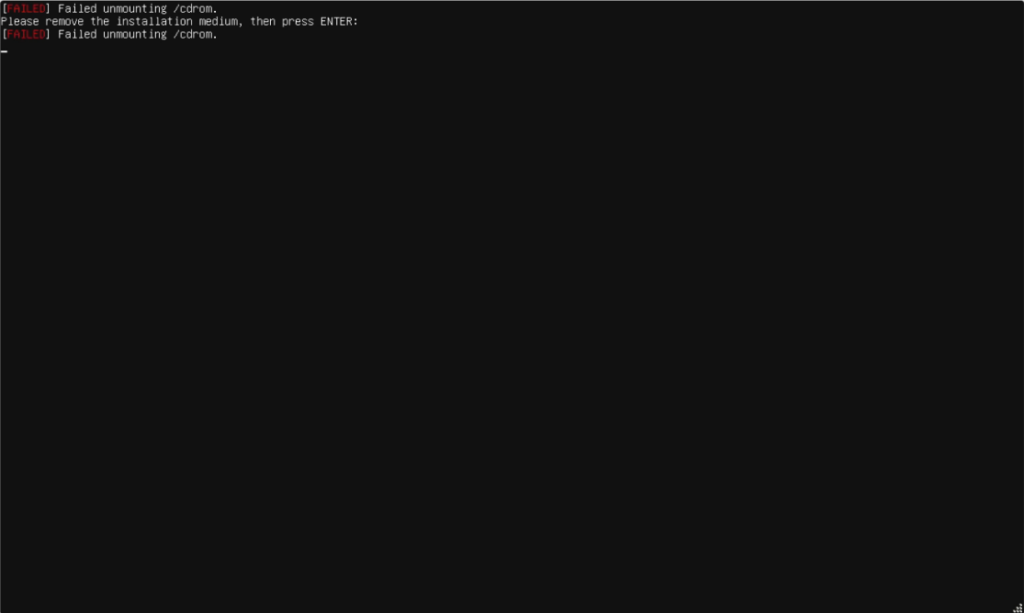
If your installing on a virtual machine you may see this error if you don’t remove media, don’t worry just press Enter and it will continue to reboot.
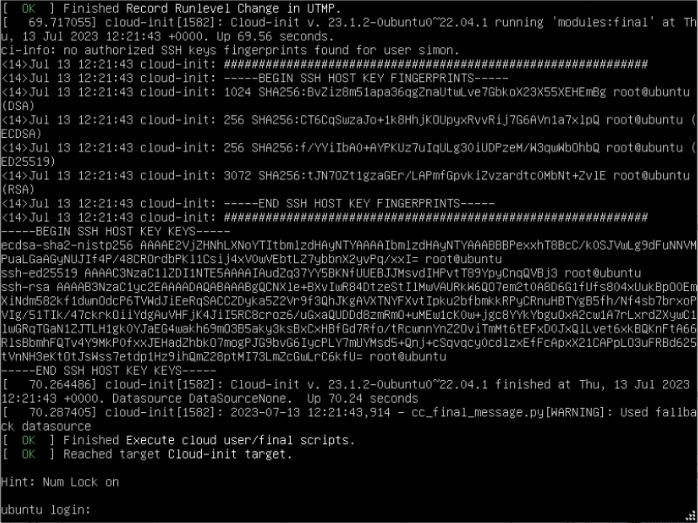
When the system reboots for the first time don’t log in straight away wait as system needs to install OpenSSH and some other scripts. When it says [OK] Finished Execute cloud user/final scripts. you can press Enter then log in.
Increase LVM
Here we will add two new hard drives to increase the LVM volume. This will be done on Ubuntu Linux example version is 22.04.2. The latest version can be downloaded from their website https://ubuntu.com/download/server. I have added two 450G hard drives to the system. Now I will show you how to add them to the system volume, the LVM. This volume is your main root volume where all the system files are and the /home directory is. The LMV is at peace as it will treat all the hard drives as one. I have SSH’d into the server so I need to open the SSH port before enabling the universal fire wall from fresh install.
# sudo ufw allow 22/tcp
# sudo ufw enable
Update server.
# sudo apt update && sudo apt upgradeFind the new drive names and the volume group name and the logic volume name.
# sudo lsblkNAME MAJ:MIN RM SIZE RO TYPE MOUNTPOINTS
sda 8:0 0 20G 0 disk
├─sda1 8:1 0 1M 0 part
├─sda2 8:2 0 1.8G 0 part /boot
└─sda3 8:3 0 18.2G 0 part
└─ubuntu–vg-ubuntu–lv 253:0 0 10G 0 lvm / <—– we will be making this partition bigger sda3.
sdb 8:16 0 450G 0 disk <—– this is the drive name we are adding sdb
sdc 8:32 0 450G 0 disk <—– this is the drive name we are adding sdbc
sr0 11:0 1 1024M 0 rom
# sudo vgdisplay— Volume group —
VG Name ubuntu-vg
System ID
Format lvm2
Metadata Areas 1
Metadata Sequence No 2
VG Access read/write
VG Status resizable
MAX LV 0
Cur LV 1
Open LV 1
Max PV 0
Cur PV 1
Act PV 1
VG Size 18.22 GiB <—– note for later to see change
PE Size 4.00 MiB <—– note for later to see change
Total PE 4665
Alloc PE / Size 2560 / 10.00 GiB
Free PE / Size 2105 / 8.22 GiB
VG UUID q0gibL-enf0-PJ9E-Sefu-zeFw-8YjZ-64xLM8
# sudo lvdisplay— Logical volume —
LV Path /dev/ubuntu-vg/ubuntu-lv <—– needed for later when we lvextend and resize2fs
LV Name ubuntu-lv
VG Name ubuntu-vg <—– needed for later when we vgextend
LV UUID z2QI9z-ZbTo-vEY3-Fh6H-oEmy-d1ru-Yk95iI
LV Write Access read/write
LV Creation host, time ubuntu-server, 2023-06-15 22:50:26 +0000
LV Status available
# open 1
LV Size 10.00 GiB
Current LE 2560
Segments 1
Allocation inherit
Read ahead sectors auto
– currently set to 256
Block device 253:0
Convert your new disk to a physical volume (in this case, the new disk is ‘sdb‘ and ‘sdc‘).
# sudo pvcreate /dev/sdb
# sudo pvcreate /dev/sdc
Add the physical volume to the volume group via ‘vgextend’.
# sudo vgextend ubuntu-vg /dev/sdb
# sudo vgextend ubuntu-vg /dev/sdc
Allocate the physical volume to a logical volume (extend the volume size by your new disk size).
# sudo lvextend -l +100%FREE /dev/ubuntu-vg/ubuntu-lvResize the file system on the logical volume so it uses the additional space.
# sudo resize2fs /dev/ubuntu-vg/ubuntu-lvCheck all space was allocated and new configuration.
# sudo df -h
# sudo vgdisplay
# sudo lsblk
NAME MAJ:MIN RM SIZE RO TYPE MOUNTPOINTS
# sudo lsblk output.
sda 8:0 0 20G 0 disk
├─sda1 8:1 0 1M 0 part
├─sda2 8:2 0 1.8G 0 part /boot
└─sda3 8:3 0 18.2G 0 part
└─ubuntu–vg-ubuntu–lv 253:0 0 918.2G 0 lvm / <—– you can see the increase in storage space to sda3
sdb 8:16 0 450G 0 disk
└─ubuntu–vg-ubuntu–lv 253:0 0 918.2G 0 lvm / <—– now part of the LVM
sdc 8:32 0 450G 0 disk
└─ubuntu–vg-ubuntu–lv 253:0 0 918.2G 0 lvm / <—– now part of the LVM
sr0 11:0 1 1024M 0 rom
Add Storage
Here we will add a new hard drive for independent storage and mount it to the system this could be used for samba share. This will be done on Ubuntu Linux example version is 22.04.2. The latest version can be downloaded from their website https://ubuntu.com/download/server. I have added a 450G hard disk to the system. Now we will create a partition and mount it to a directory on the system. We will also add the disk to fstab so it will auto mount on restart. I have SSH’d into the server so I need to open the SSH port before enabling the universal fire wall from fresh install.
# sudo ufw allow 22/tcp
# sudo ufw enable
Update server.
# sudo apt update && sudo apt upgradeFind the new drive names and the volume group name and the logic volume name.
# sudo lsblkNAME MAJ:MIN RM SIZE RO TYPE MOUNTPOINTS
sda 8:0 0 20G 0 disk
├─sda1 8:1 0 1M 0 part
├─sda2 8:2 0 1.8G 0 part /boot
└─sda3 8:3 0 18.2G 0 part
└─ubuntu–vg-ubuntu–lv 253:0 0 918.2G 0 lvm /
sdb 8:16 0 450G 0 disk
└─ubuntu–vg-ubuntu–lv 253:0 0 918.2G 0 lvm /
sdc 8:32 0 450G 0 disk
└─ubuntu–vg-ubuntu–lv 253:0 0 918.2G 0 lvm /
sdd 8:48 0 450G 0 disk <—– this is the disk name we are adding sdd
sr0 11:0 1 1024M 0 rom
Create partition on /dev/sdd.
# sudo fdisk /dev/sdd
	: g     <----- convert to GPT
	: n     <----- new partition follow prompts
	: w     <----- write to system
Check new partition. There should now be a sdd1
# sudo lsblk -p /dev/sddFormat new partition.
# sudo mkfs -t ext4 /dev/sdd1Create directory to mount the new partition. I will use share and place it in /mnt the mount folder for more permanent storage.
# sudo mkdir /mnt/shareMount new partition.
# sudo mount /dev/sdd1 /mnt/shareCheck mounted ok. You should now be able to see /mnt/share
# sudo lsblkNAME MAJ:MIN RM SIZE RO TYPE MOUNTPOINTS
sda 8:0 0 20G 0 disk
├─sda1 8:1 0 1M 0 part
├─sda2 8:2 0 1.8G 0 part /boot
└─sda3 8:3 0 18.2G 0 part
└─ubuntu–vg-ubuntu–lv 253:0 0 918.2G 0 lvm /
sdb 8:16 0 450G 0 disk
└─ubuntu–vg-ubuntu–lv 253:0 0 918.2G 0 lvm /
sdc 8:32 0 450G 0 disk
└─ubuntu–vg-ubuntu–lv 253:0 0 918.2G 0 lvm /
sdd 8:48 0 450G 0 disk
└─sdd1 8:49 0 450G 0 part /mnt/share <—– can now see it’s mounted at /mnt/share
sr0 11:0 1 1024M 0 rom
Mount permanently on restart etc. First find the unique id UUID.
# sudo blkid/dev/mapper/ubuntu–vg-ubuntu–lv: UUID=”8ce6d827-b178-4f7f-a0a5-7a0e2aed665f” BLOCK_SIZE=”4096″ TYPE=”ext4″
/dev/sda2: UUID=”dfa8d1be-fb11-4571-96a2-3491e24c8d25″ BLOCK_SIZE=”4096″ TYPE=”ext4″ PARTUUID=”2f5376d6-9338-4390-8616-55dcb4b82f5d”
/dev/sda3: UUID=”6rOmjN-pAIs-K4cz-SxMI-oRCZ-MxWV-dbLkbH” TYPE=”LVM2_member” PARTUUID=”10be40e3-8830-471b-ab6c-1e21f96053e0″
/dev/loop1: TYPE=”squashfs”
/dev/sdd1: UUID=”4e07bf22-7a7d-4d15-b77a-070ef94730c1” BLOCK_SIZE=”4096″ TYPE=”ext4″ PARTUUID=”dd5f86b1-6b34-c64d-8569-265785a9f6f7″ <—–
/dev/sdb: UUID=”UNDV94-RVD5-QofK-JKpG-PniZ-wvMh-YlqLT0″ TYPE=”LVM2_member”
/dev/loop6: TYPE=”squashfs”
/dev/loop4: TYPE=”squashfs”
/dev/loop2: TYPE=”squashfs”
/dev/loop0: TYPE=”squashfs”
/dev/sdc: UUID=”zkuQSz-9pA6-ixq2-f0dq-Tj85-z3kU-rdUFvC” TYPE=”LVM2_member”
/dev/sda1: PARTUUID=”e8f2519d-d1fa-4926-a29a-a0e82369bb05″
/dev/loop5: TYPE=”squashfs”
/dev/loop3: TYPE=”squashfs”
# sudo vi /etc/fstabAdd following line.
UUID=4e07bf22-7a7d-4d15-b77a-070ef94730c1 /mnt/share/ ext4 defaults 0 0Check by forcing mount now.
# sudo mount -a